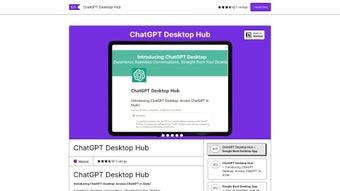

Download ChatGPT Desktop Hub – Efficient AI Conversations, Secure Desktop App
Overview
ChatGPT Desktop Hub is a purpose‑built desktop client that brings OpenAI’s powerful ChatGPT model right to your workstation. Unlike the traditional web‑based approach that forces you to juggle multiple browser tabs, this application creates a single, focused workspace where you can launch, organize, and maintain AI conversations with ease. The interface is deliberately minimalist yet highly functional, offering a clean chat window, quick‑access shortcuts, and a side panel for managing multiple threads. By keeping all interactions on the desktop, the Hub reduces latency, improves responsiveness, and helps you stay productive without the constant distraction of navigating between tabs or windows. Privacy‑first design principles guide every aspect of the software: all data is stored locally unless you explicitly enable cloud sync, and communications with OpenAI’s servers are encrypted using TLS 1.3. Whether you’re a writer brainstorming ideas, a developer seeking quick code snippets, or a student researching topics, ChatGPT Desktop Hub provides a reliable, secure, and fast environment for AI‑enhanced work. The app also supports theme customization, allowing you to switch between light and dark modes, adjust font sizes, and rearrange panels to match your workflow. In short, ChatGPT Desktop Hub transforms the way you interact with AI by delivering a dedicated, privacy‑aware, and productivity‑oriented experience directly on Windows, macOS, and Linux desktops.
Key Features
- Single‑window desktop interface – eliminates the need for multiple browser tabs.
- Multi‑conversation handling – manage several chat threads simultaneously with a side‑panel navigator.
- Customizable layout – adjust font size, color scheme, and panel positions to suit personal preferences.
- Privacy‑focused architecture – local storage of conversation history, end‑to‑end encryption for all API calls.
- Cross‑platform support – native builds for Windows 10/11, macOS 12+, and major Linux distributions.
- Quick‑access shortcuts – keyboard shortcuts for new chat, search, and theme toggle.
- Auto‑update mechanism – seamless background updates keep the app current without manual intervention.
- Integrated token counter – monitor usage and stay within API limits.
- Export & import – export conversations as PDF or markdown; import previous sessions for continuity.
- Lightweight footprint – consumes minimal RAM and CPU, ideal for older hardware.
Installation & Usage Instructions
Getting started with ChatGPT Desktop Hub is straightforward. Follow these steps to download, install, and begin chatting:
- Download the installer: Visit the official website and click the “Download for Windows/macOS/Linux” button that matches your operating system. The file size is under 80 MB, ensuring a quick download even on slower connections.
- Run the installer: On Windows, double‑click the .exe file and follow the on‑screen wizard; macOS users drag the app to the Applications folder; Linux users can use the .AppImage or install via a .deb package.
- Launch the application: After installation, open ChatGPT Desktop Hub from your start menu, Launchpad, or desktop shortcut.
- Configure API credentials: The first launch prompts you to paste your OpenAI API key. This key is stored securely in your operating system’s keychain or credential manager.
- Create your first chat: Click the “New Chat” button, type a prompt, and press Enter. The AI response appears instantly, and you can continue the conversation or open a new thread via the side panel.
- Customize the interface: Access the Settings menu to switch between light/dark themes, adjust font sizes, and enable/disable auto‑save of chat history.
- Utilize shortcuts: Press Ctrl+N (Windows/Linux) or ⌘+N (macOS) for a new chat, Ctrl+F to search within conversations, and Ctrl+T to toggle the theme.
- Stay updated: The app checks for updates on launch. If a newer version is available, you’ll be prompted to install it without losing existing settings.
These steps cover the typical workflow for most users. Advanced users can also launch the app from the command line with flags such as --no‑auto‑update or --log‑level=debug for troubleshooting. The intuitive UI combined with robust documentation ensures that both novices and power users can extract maximum value from the Hub without a steep learning curve.
Compatibility, Pros & Cons
ChatGPT Desktop Hub runs natively on Windows 10/11 (64‑bit), macOS 12 Monterey and later, and Linux distributions that support the GTK 3 toolkit (Ubuntu 20.04+, Fedora 33+, Debian 10+). The application is built with Electron, which guarantees consistent behavior across platforms while still delivering a lightweight experience. System requirements are modest: a dual‑core CPU, 2 GB RAM, and at least 200 MB of free disk space.
Pros
- Centralized desktop environment eliminates tab overload.
- Multi‑thread management keeps projects organized.
- Strong privacy controls with local storage and encrypted API traffic.
- Cross‑platform support ensures the same experience on Windows, macOS, and Linux.
- Customizable UI adapts to personal workflow and accessibility needs.
- Automatic updates keep the app secure and feature‑rich.
- Low resource consumption compared to running multiple browsers.
Cons
- Requires an active OpenAI API key; free tier limits may apply.
- Electron base can feel heavier than native‑only apps on very old hardware.
- No built‑in voice input; users must rely on external dictation tools.
- Limited offline functionality – the AI model lives in the cloud.
- Export formats are limited to PDF and markdown; no direct DOCX export.
Frequently Asked Questions
Do I need an internet connection to use ChatGPT Desktop Hub?
Yes. The application acts as a client for OpenAI’s cloud‑based ChatGPT model, so an active internet connection is required for generating responses. However, the UI itself works offline, allowing you to read saved conversations without connectivity.
Is my conversation data stored on OpenAI’s servers?
By default, ChatGPT Desktop Hub stores all chat logs locally on your device. The only data transmitted to OpenAI are the prompts you send and the resulting AI responses, both of which are encrypted during transit. No personal conversation history is retained on OpenAI’s side unless you enable a cloud‑sync feature (currently optional).
Can I use the free tier of OpenAI’s API with this app?
Absolutely. The free tier provides a limited number of tokens per month, which is sufficient for casual usage. If you exceed the free quota, you’ll need to upgrade to a paid plan or monitor your usage via the built‑in token counter.
Is ChatGPT Desktop Hub compatible with Linux distributions that use Wayland?
Yes. The Electron framework supports Wayland through XWayland compatibility. On pure Wayland sessions, you may need to install the libxwayland package, but most major distributions ship it by default.
How do I export a conversation for sharing with teammates?
Open the conversation, click the “Export” button in the toolbar, and choose either PDF or markdown. The exported file includes timestamps, user prompts, and AI responses, making it easy to share or archive.
Conclusion & Call to Action
ChatGPT Desktop Hub bridges the gap between powerful AI and everyday productivity by delivering a dedicated, secure, and highly customizable desktop client. Its multi‑conversation handling, privacy‑first design, and cross‑platform compatibility make it an indispensable tool for anyone who relies on ChatGPT for writing, coding, research, or brainstorming. While the need for an OpenAI API key and the Electron base are minor trade‑offs, the overall benefit—streamlined workflow and enhanced data control—far outweighs these considerations. If you’re ready to replace scattered browser tabs with a single, efficient hub, click the download button below, install the app, and experience AI‑assisted productivity like never before.
Download ChatGPT Desktop Hub now and start transforming the way you converse with AI.
Pros: Centralized UI, multi‑thread support, strong privacy, cross‑platform, lightweight.
Cons: Requires API key, Electron overhead on very old hardware, no native voice input.



.png)



